Housing Guide
Creating a rentable region
Step 1: Create a worldguard region with the same name as the desired housing region:
- Select the house with WorldEdit, using either
//pos1and//pos2or the selection wand. Regions can take the shape of cuboids or 2D polygons with heights. For more information on this, check the WorldEdit documentation (opens in a new tab). - Define the WorldGuard region:
/rg define <regionname> - Set the priority of the region to
1using/rg setpriority <regionname> 1
For Houses/Shops
Step 2: Create the ARM housing region, using a sign:
-
Run
/arm rentpreset load House -
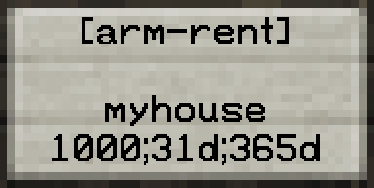
Place down a sign in an appropriate spot outside the region (otherwise players can break them):
- On line 1:
[arm-rent] - On line 2:
<world>(Can be left blank if the region is in the same world) - On line 3:
<regionname> - On line 4:
<price>;31d;365d
- On line 1:
Step 3: Set the point where players will warp when they run /arm tp:
- Stand inside the house in an appropriate spot by the front door
- Press F3 to check your coordinates and run
/tp x.5 y z.5to ensure you are centred on the block - Look straight ahead and run
/arm setwarp <regionname>
Step 4 (ONLY FOR SHOP REGIONS): Change the regionkind of the region to Shop:
- Run
/arm setregionkind <regionname> Shop
For Estates
Step 2: Create the ARM estate region, using a sign:
-
Run
/arm rentpreset load EstateSmall,EstateMedium, orEstateLarge -
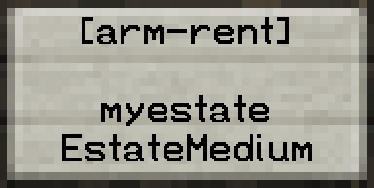
Place down a sign in an appropriate spot outside the region (otherwise players can break them):
- On line 1:
[arm-rent] - On line 2:
<world>(Can be left blank if the region is in the same world) - On line 3:
<regionname> - On line 4:
<EstateSmall/EstateMedium/EstateLarge>
- On line 1:
Step 3: Change the regionkind of the region to Estate:
- Run
/arm setregionkind <regionname> Estate
Useful commands
To remove all owners and members from a region and restore it:
/arm reset <regionname>
To list a player's regions:
/arm listregions [PLAYER]
To set the teleport point for a region:
/arm setwarp <regionname>